
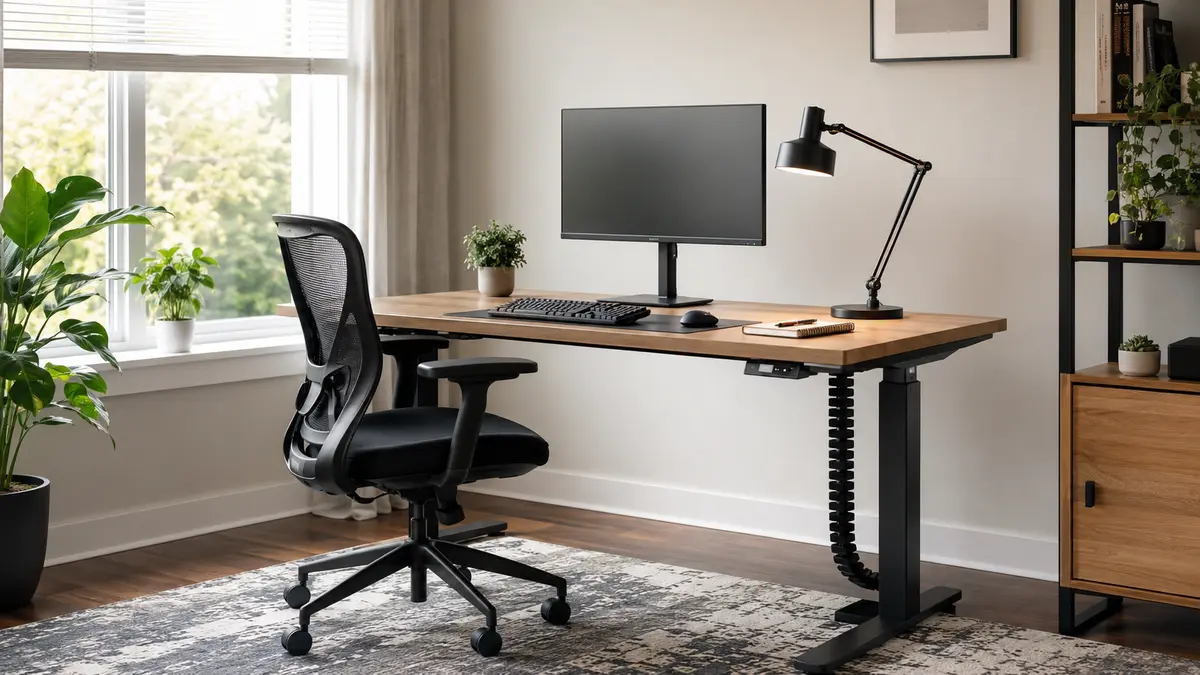
A thoughtful home office setup for productivity makes useful work easier to begin and less tiring to sustain. It does not require a luxury room or an expensive desk. The goal is to create a reliable place where your body is supported, the screen is readable, tools are within reach, distractions are managed, and the end of the workday is clear.
This guide combines practical ergonomics, lighting, sound control, organization, technology, and work habits. Use it to improve a dedicated office, a bedroom corner, or a shared living space one decision at a time.
Start with the work you actually do
A setup should fit the person and the task. Someone who spends hours in video meetings needs a different arrangement from a designer using a large display, a bookkeeper handling documents, or a consultant who alternates between focused writing and calls. Before buying anything, list your common activities, the equipment each activity requires, and the problems you notice now.
Record a normal workday. Note how long you type, read, talk, draw, handle paper, or move between systems. Notice when you lean toward the screen, twist to see a second monitor, reach for a mouse, lose track of cables, or relocate because of noise. Those observations reveal the highest-value improvements.
The OSHA Computer Workstations eTool explains that there is no single correct posture or component arrangement for everyone. It provides basic design goals for a safe and comfortable workstation. Treat dimensions in any guide as starting points and adjust them to your body, equipment, and needs.
Choose the best available location
Separate work from household traffic
Choose the quietest practical area with reliable power, internet access, and controllable light. A door is helpful but not essential. A corner that faces away from a television or busy walkway may be enough. If several people share the home, agree on focus periods, call times, and signals that mean “do not interrupt unless urgent.”
Avoid working from a sofa or bed as your normal arrangement. Soft furniture often encourages unsupported postures, and using the bed for work can blur the mental boundary between work and rest. If space is limited, use a compact desk, wall-mounted surface, folding table, or properly sized dining-table position and store equipment at the end of the day.
Use daylight without creating glare
Daylight can make a workspace pleasant, but a bright window directly in front of or behind the screen can create uncomfortable contrast or reflections. A desk placed roughly perpendicular to the window usually provides more controllable side light. Use blinds or curtains to manage changing sun, and move glossy objects that reflect light into the screen.
Check temperature and ventilation
A room that is stuffy, too warm, or too cold can make concentration difficult. Keep supply and return vents clear, use weather-appropriate clothing, and ventilate when outdoor conditions allow. For a fuller room-by-room plan, read how to improve indoor air quality.
Build the workstation from the chair upward
Adjust one element at a time, beginning with stable support for the body. A small change in seat height can affect the feet, knees, hips, elbows, wrists, and screen position.
Set the chair
Sit back so the chair supports the lower back. Keep the shoulders relaxed and upper arms close to the torso. Adjust the seat so the feet rest fully on the floor. If the work surface requires a higher seat and the feet no longer reach comfortably, add a stable footrest. A solid box can work temporarily if it does not slide or collapse.
The seat edge should not press firmly into the back of the knees. Armrests may support relaxed shoulders, but they should not force the shoulders upward or prevent the chair from approaching the desk. If they interfere and are adjustable, lower or remove them.
According to OSHA’s neutral posture guidance, the head should be level and balanced, shoulders relaxed, elbows close to the body, wrists aligned with the forearms, and feet supported by the floor or a footrest. The point is not to hold one rigid pose all day. It is to avoid prolonged awkward positions and make movement easy.
Match desk height to the input devices
Place the keyboard and mouse so the elbows can remain near the body and the forearms are approximately level. Wrists should stay fairly straight instead of bending upward or sideways. If a fixed desk is too high, raise the chair and use a footrest. If it is too low, sturdy risers may help, provided the surface remains stable.
Keep frequently used objects inside an easy reach zone. The mouse should be beside the keyboard, not far forward or to the side. If you use a numeric keypad rarely, a compact keyboard may bring the mouse closer. Alternate shortcut keys and pointer use where practical.
Position the monitor
Place the primary display directly in front of you. A common starting point is roughly an arm’s length away, then adjust for screen size, text scale, and vision. The top of the visible screen is often at or slightly below eye level, allowing the eyes to look slightly downward without bending the neck. People who use some types of corrective lenses may prefer a lower display.
Increase text size before leaning toward the screen. Clean the display and adjust brightness and contrast to suit the room. If you use two monitors equally, center the pair and place them close together. If one monitor is primary, center it and keep the secondary display adjacent. Avoid repeatedly twisting the neck.
Improve a laptop setup
A laptop combines the screen and keyboard, so prolonged use creates a compromise: when the screen is high enough, the keyboard is too high; when the keyboard is comfortable, the screen is low. For longer sessions, use a stable laptop stand or books to raise the screen and connect an external keyboard and mouse. Do not block cooling vents.
Use movement as part of the setup
No chair makes continuous sitting ideal. Design the workday so posture changes happen naturally. Put a printer or water bottle a short walk away, take calls standing when appropriate, and alternate computer work with tasks that use different movements.
A sit-stand desk can provide variety, but standing all day is not the goal. Adjust the keyboard and display for the standing position, wear supportive footwear, and begin with short periods. If a desk converter makes the monitor unstable or places the keyboard too high, it may create new problems.
Use a gentle reminder every 30 to 60 minutes to release the hands, change position, look into the distance, and move briefly. The best schedule is one you will follow without disrupting important conversations or deep work.
Create comfortable lighting
Layer ambient and task light
Use general room light to prevent the screen from becoming the only bright object, then add a task lamp for reading or handwriting. Position the lamp so your hand does not cast a shadow over the work and the bulb is not visible in the screen. A movable lamp gives more control than a fixed overhead fixture.
Very cool or very warm light is less important than adequate, even illumination and low glare. Choose a comfortable color temperature, use consistent bulbs where possible, and avoid constant changes in brightness. During video calls, a soft light in front of you is usually more flattering and useful than a bright window behind you.
Reduce eye strain
Set comfortable text scaling, increase contrast, and use a screen size that suits the work. Blink normally and look away from near work regularly. Reflections are often better solved by changing the screen or light position than by making the screen extremely bright. Persistent eye discomfort, headaches, or vision changes deserve advice from an appropriate health professional.
Control sound and interruptions
Sound control has three layers: reduce noise at the source, block the path, and manage what reaches the listener. Close a door, add weather stripping where appropriate, place soft furnishings in an echoing room, and move loud equipment away from the desk. A bookcase or thick curtain can reduce some reflected sound, though it will not soundproof a room.
Headphones can help, but use a comfortable volume and take breaks. Noise-cancelling models are most useful for steady low-frequency sounds. For conversations and unpredictable household noise, a clear schedule or another room may be more effective.
Improve call quality
Move the microphone closer rather than increasing gain until it captures every room sound. A basic wired headset often provides clearer audio than a distant laptop microphone. Test the call platform, camera, microphone, and screen-sharing permissions before an important meeting.
Keep the camera near eye level and look toward it when speaking. Use a simple, non-distracting background or the platform’s modest blur option. Do not expose confidential papers, family photographs, addresses, or whiteboards in the frame.
Make the technology reliable
Strengthen the internet connection
Place the router in an open, central position when possible, away from dense barriers and sources of interference. Test speed and stability at the desk at several times of day. Ethernet is often the most reliable choice for a fixed workstation. If Wi-Fi coverage is weak, a properly configured mesh system or access point may be better than an unplanned chain of extenders.
Plan power and cables
Use an appropriately rated surge protector from a reputable supplier and avoid overloading outlets. Route cables so they do not create a trip hazard, pull on ports, or become pinched by furniture. Label both ends of less obvious cables. Keep liquids away from power strips and electronics.
A small uninterruptible power supply can provide time to save work and shut equipment down during short outages. Choose capacity based on essential devices rather than connecting everything in the room. Follow the manufacturer’s safety and battery-replacement instructions.
Secure the workstation
Use automatic updates, device encryption where available, a password manager, multifactor authentication, and separate work accounts. Lock the screen when you step away, especially in a shared household. Back up important work and test restoration. The complete small business cybersecurity checklist covers devices, accounts, networks, backups, vendors, and incident response.
Organize for low-friction work
Give every active item a home
Use a small number of clearly defined zones: current work, reference, incoming, outgoing, supplies, and archive. A physical inbox is helpful only if you process it. Set a recurring time to decide what each item means and where it belongs.
Keep the desktop mostly clear but not sterile. The objects used every day should be easy to reach. Weekly tools can live in a drawer or nearby shelf. Rarely used supplies should not occupy prime space.
Reduce digital clutter
Use a consistent folder structure, descriptive file names, and one agreed location for shared documents. Close unused tabs at natural stopping points and use bookmarks for stable references rather than leaving dozens of pages open. Turn off notifications that do not require immediate action.
Set two or three communication windows if the work allows it. Constant checking creates switching costs and makes focused work feel impossible. Urgent channels should be few, understood by the team, and reserved for genuinely time-sensitive matters.
Design the day as carefully as the desk
Create a start ritual
Begin with a short repeatable sequence: arrive at the workspace, remove unrelated items, review the calendar, choose the one most important outcome, and open only the materials required for the first block. A ritual reduces the effort of deciding how to begin.
Use focus blocks
Match blocks to the task and your concentration. A demanding project may need 45 to 90 minutes, while administrative work may fit a shorter interval. Put the phone out of reach, close unrelated applications, and define the result for the block. “Work on report” is vague; “draft the findings section from approved notes” is actionable.
Protect breaks
A break should change the visual distance, posture, and mental task. Stand, walk, drink water, or step outside when appropriate. Scrolling another screen may not provide the same relief. Schedule lunch away from the desk when possible.
End the workday
Spend five to ten minutes recording unfinished work, selecting tomorrow’s first step, clearing the surface, closing work apps, and switching off task lighting. In a shared room, store the laptop and papers out of sight. The shutdown ritual helps preserve boundaries and makes the next morning easier.
Budget upgrades in the right order
Do not replace everything at once. Fix the element causing the greatest discomfort or delay and test the result for a week.
- Free adjustments: Move the desk, change screen scaling, reduce notifications, and reorganize reach zones.
- Basic support: Add a stable footrest, laptop riser, external keyboard, mouse, or task lamp.
- Core furniture: Choose an adjustable chair and appropriately sized work surface after measuring the space and testing fit.
- Reliability: Improve internet coverage, power protection, backup, and call audio.
- Advanced comfort: Consider a second monitor, sit-stand option, acoustic treatment, or dedicated storage only if the workflow justifies it.
| Problem | Try first | Possible upgrade |
|---|---|---|
| Neck bends toward laptop | Raise screen and increase text size | Laptop stand plus keyboard and mouse |
| Feet do not reach floor | Use a stable foot support | Adjustable footrest or better-fitting chair |
| Mouse shoulder feels tense | Move mouse beside keyboard | Compact keyboard or suitable pointing device |
| Screen glare | Turn desk and adjust blinds | Controllable task and ambient lighting |
| Calls sound unclear | Move closer and reduce room noise | Wired headset or dedicated microphone |
| Wi-Fi drops | Reposition router and test channels | Ethernet or planned mesh/access point |
Special situations: shared spaces and hybrid work
Working in a room used by other people
A shared space needs simple, visible agreements. Put call blocks on a household calendar, identify a quiet fallback location, and agree on a signal for focused work. Use a headset for privacy, but remember that a headset does not prevent other people from hearing confidential information you say aloud. Schedule sensitive conversations when the room is private or use an appropriate alternative location.
Create a portable work kit with the laptop, charger, keyboard, mouse, headset, notebook, and any adapters. A lidded box or compact rolling cart can transform the same surface at the beginning and end of the day. Photograph the correct arrangement once it is comfortable so you can reproduce it quickly.
Switching between home and an office
Hybrid work becomes easier when essential files, settings, and security practices are consistent across locations. Keep authoritative documents in approved shared systems rather than copying untracked versions to several devices. Use the same keyboard shortcuts, folder structure, task system, and meeting habits where possible.
Decide which equipment should travel and which should stay. Frequently transporting an entire setup increases forgotten items and cable wear. A second inexpensive charger, mouse, or headset may be more useful than a premium item that is never in the right place. Confirm that every location supports secure conversations and screen privacy.
Accessibility and individual needs
General ergonomic advice cannot account for every disability, injury, vision need, hearing need, or sensory preference. Adjustable furniture, alternative keyboards, trackballs, speech input, screen readers, captions, high-contrast settings, and lighting controls may help different people. In an employment setting, follow applicable accommodation processes and involve the worker in selecting and testing equipment. Professional assessment may be appropriate when pain, limitation, or a medical condition affects the setup.
Review the setup after two weeks
A workstation that looks correct may not perform well in a real schedule. After two weeks, review five questions: Can you begin the most important work quickly? Do you notice recurring discomfort? Are calls and connections reliable? Which interruption appears most often? Does the shutdown routine protect non-work time?
Keep a short log rather than relying on memory. Record the time, task, symptom or interruption, and likely cause. Patterns are more useful than a single difficult day. Change one major variable at a time so you can tell whether it helped. Recheck the chair, input devices, and screen whenever you add equipment or a different person uses the station.
Productivity should be judged by useful outcomes, not by hours spent at the desk. Track whether priority work finishes on time, rework falls, calls become clearer, and the end of the day feels manageable. A good home office supports consistent performance while leaving enough energy for life outside work.
Home office setup checklist
- The location supports the work and minimizes household traffic.
- The chair supports the back and the feet rest on the floor or a footrest.
- Shoulders are relaxed and elbows stay near the body.
- Keyboard and mouse allow fairly straight wrists.
- The primary screen is centered and readable without leaning.
- Daylight and lamps do not create distracting glare.
- Temperature and ventilation are reasonably comfortable.
- Frequently used tools are within easy reach.
- Cables are secure and outlets are not overloaded.
- Internet, microphone, camera, and backup are tested.
- Work accounts and devices use appropriate security controls.
- The schedule includes movement, breaks, focus, and a shutdown routine.
Frequently asked questions
What is the most important home office upgrade?
It depends on the current limitation. For many laptop users, raising the screen and adding an external keyboard and mouse provides an immediate improvement. For others, a stable chair, better lighting, or reliable internet matters more. Observe the workday and address the highest-impact problem first.
Should a desk face a window?
Facing a window may create strong contrast, while placing a window directly behind you may create screen reflections and poor video lighting. A position roughly perpendicular to the window often gives more controllable side light. Adjust blinds as conditions change.
Is a standing desk necessary for productivity?
No. It can make posture changes convenient, but a well-adjusted seated station, regular movement, and varied tasks can also work well. If you use a standing desk, adjust the keyboard and monitor and build standing time gradually.
How high should a monitor be?
A common starting point places the top of the visible screen around or slightly below eye level, with the display directly in front and text readable without leaning. Individual vision, screen size, and corrective lenses may require a different position.
How can I make a home office in a small room?
Use a compact or folding surface, vertical storage, a laptop stand with a small keyboard, and a container that holds work items after hours. Define the work zone with lighting or a mat, and use a consistent setup and shutdown routine.
How often should I change position?
Change position regularly instead of waiting for discomfort. A reminder every 30 to 60 minutes is a practical starting point, but tasks and individual needs vary. Alternate sitting, standing, walking, and different kinds of work where possible.
Final takeaway
A productive home office is a system, not a shopping list. Fit the workstation to your body and tasks, control glare and noise, make the technology reliable, organize active work, and design clear start, focus, break, and shutdown routines. Improve the biggest constraint first, test the change, and keep the setup flexible enough to move with you.


